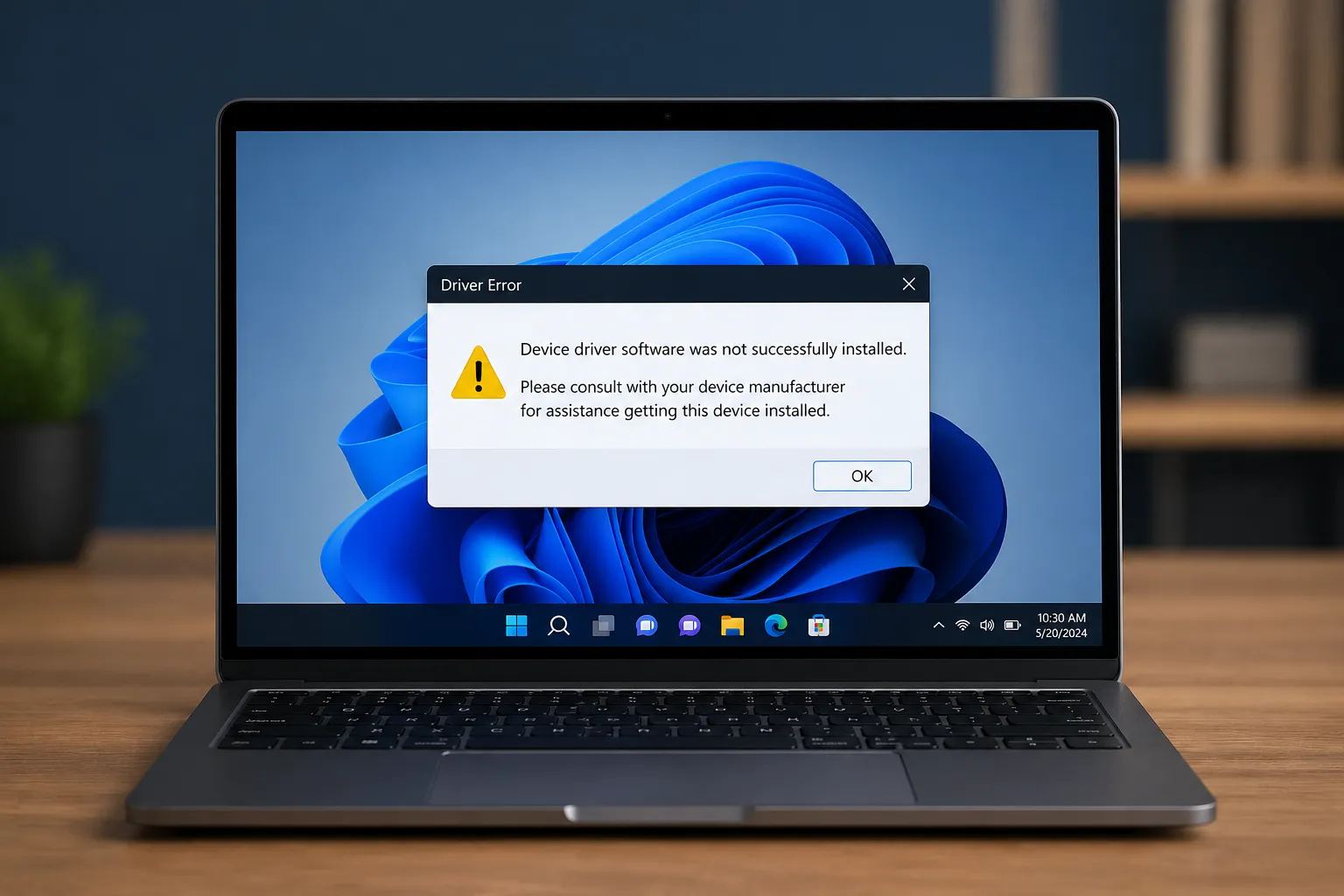
USB is often touted as the ultimate "Plug and Play" interface, but behind that simple connector lies a complex hierarchy of host controllers and drivers. If your high-speed drive feels sluggish, the problem is likely in how your OS is talking to the USB controller.
Host Controller Architectures: xHCI vs. EHCI
The performance of your USB ports is determined by the Host Controller Interface (HCI) driver. Understanding the difference between these standards is key to troubleshooting speed issues.
- EHCI (Enhanced Host Controller Interface): The standard for USB 2.0. It supports speeds up to 480 Mbps. Most modern PCs still have EHCI controllers for legacy support of keyboards and mice.
- xHCI (eXtensible Host Controller Interface): The modern standard for USB 3.0, 3.1, 3.2, and USB4. It is designed to be much more efficient, supporting speeds from 5 Gbps to 40 Gbps and beyond. Unlike EHCI, xHCI handles all speeds (including 2.0 and 1.1), which is why modern systems often only show xHCI controllers in Device Manager.
Why Your 3.0 Port is Running at 2.0 Speeds
It is a common frustration: you plug a USB 3.0 drive into a blue port, but Windows warns you that the "device can perform faster." This usually happens because of a driver "handshake" failure.
When a device is plugged in, the driver and hardware perform a "link training" sequence. If the signal quality is poor (due to a cheap cable) or the xHCI driver is outdated, the controller will "fail safe" and drop the connection down to USB 2.0 speeds to ensure data integrity. Reinstalling the chipset and USB root hub drivers often forces a new, higher-speed handshake.
USB-C Power Delivery (PD) Communication
USB-C isn't just about data; it's about power. A specialized "PD Controller" driver manages the negotiation between your charger and your laptop. They "talk" over a configuration channel (CC) wire to decide if the port should provide 5V, 9V, 15V, or 20V. If this driver is missing, your laptop might only charge at a slow 5W rate or not at all.
The Impact of USB Selective Suspend
To save battery, Windows uses a feature called "Selective Suspend." This allows the driver to turn off individual USB ports when they aren't actively transferring data.
When to Disable Selective Suspend
If your USB mouse "wakes up" with a delay, or your external hard drive keeps disconnecting during long transfers, the Selective Suspend driver is being too aggressive. You can disable this in Power Options > Change plan settings > Advanced power settings > USB settings.
Conclusion
USB performance is a delicate balance of controller hardware and driver efficiency. By ensuring your xHCI drivers are up to date and understanding the power-negotiation roles of USB-C, you can ensure your peripherals operate at their maximum rated speeds. Don't let a legacy EHCI driver or an aggressive power-saving setting bottleneck your high-speed hardware.